GoGuardian: How Digital Classroom Management Supports Safer and More Focused Learning
GoGuardian is an education technology platform designed to help schools manage student internet access, classroom device activity, digital safety, and online learning environments. As laptops, tablets, cloud applications, artificial intelligence tools, and web based assignments become increasingly common in education, teachers and technology administrators need practical ways to keep students focused while protecting access to appropriate content. GoGuardian addresses these needs through products that support classroom management, web filtering, student safety monitoring, device oversight, and school technology administration. The platform is intended to give educators greater visibility into digital learning while allowing schools to create policies that reflect their own instructional, privacy, and safety requirements.
Digital learning has transformed the classroom.
A student can research a science project, collaborate on a document, watch an instructional video, use a learning application, and communicate with a teacher from the same device.
That flexibility creates educational opportunities.
It also creates challenges.
Students may become distracted.
They may accidentally reach inappropriate content.
Teachers may struggle to determine who needs help.
Technology departments may need to apply different internet rules across thousands of devices.
Schools therefore need tools that balance access, safety, instruction, and privacy.
What Is GoGuardian?
GoGuardian is a collection of education technology tools primarily designed for schools and school districts.
Its current offerings include products such as:
• GoGuardian Teacher
• GoGuardian Admin
• GoGuardian Beacon
• GoGuardian Director
• GoGuardian DNS
• GoGuardian Fleet
• GoGuardian Hall Pass
• GoGuardian Discover
These tools serve different purposes, ranging from classroom management and internet filtering to student safety and technology administration.
A school does not necessarily use every product.
Technology leaders can select solutions according to their environment and needs.
What Does GoGuardian Teacher Do?
GoGuardian Teacher is designed for classroom management.
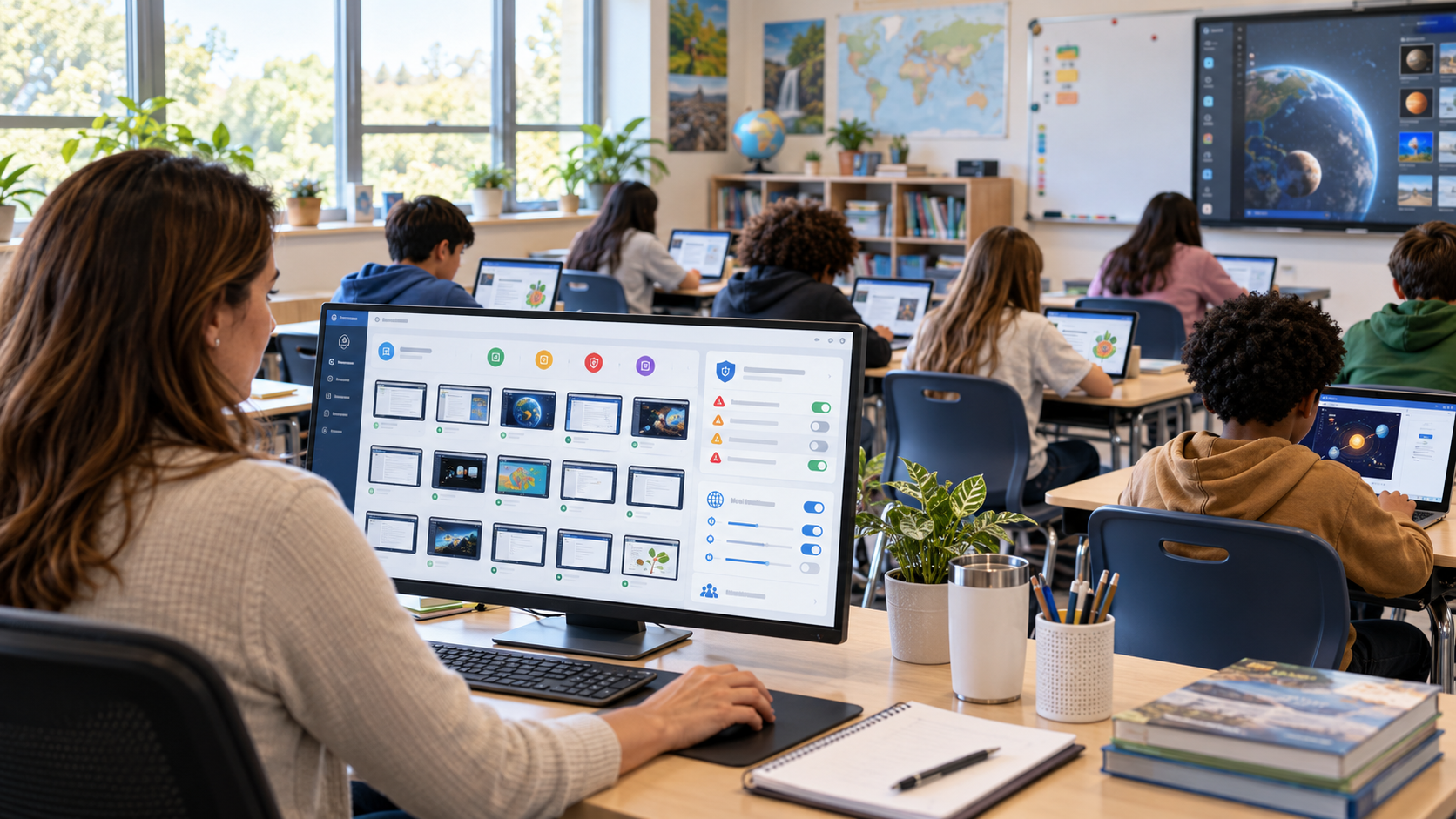
It gives educators visibility into student digital activity during managed classroom sessions and provides controls intended to help students stay focused.
Current features include capabilities such as:
• Viewing student browsing activity
• Managing tabs remotely
• Guiding students to selected resources
• Blocking or allowing websites during class
• Applying classroom Scenes
• Organizing students into groups
• Communicating through chat
• Sharing instructional content
• Receiving off task alerts
These capabilities allow teachers to manage digital instruction without constantly walking around the classroom to check every screen.
What Does GoGuardian Admin Do?
GoGuardian Admin focuses more heavily on school wide web filtering and policy management.
Administrators can use filtering rules to control what types of websites students can access on supported managed devices and environments.
The platform supports centralized policies, reporting, and filtering across different device ecosystems, including ChromeOS, Windows, macOS, and iOS environments.
What Does GoGuardian Beacon Do?
GoGuardian Beacon is designed as a student safety support system.
It uses automated analysis to identify online activity that may indicate potential concerns related to self harm, suicide, or violence and can generate alerts for designated school personnel.
These alerts are not medical diagnoses.
They are signals that trained school professionals can review within appropriate safety and intervention procedures.
Why Digital Classroom Management Matters
Technology can improve learning when it supports the lesson.
The same technology can become distracting when students move away from instructional tasks.
Common digital distractions may include:
• Games
• Entertainment websites
• Social media
• Unrelated videos
• Messaging
• Shopping
• Unrelated research
• Artificial intelligence tools used outside lesson requirements
A teacher managing thirty students cannot manually watch every screen continuously.
Classroom management software can provide another layer of visibility.
The goal should not be constant surveillance for its own sake.
The goal is to help create an environment where technology supports learning.
7 Powerful Benefits of GoGuardian
Schools may adopt digital management tools for several reasons.
The following benefits represent some of the most important educational use cases.
1. GoGuardian Can Help Students Stay Focused
One of the most obvious challenges of individual student devices is distraction.
A student may begin an assignment and quickly move to unrelated content.
GoGuardian Teacher gives educators visibility into active student screens and browsing activity during managed classroom sessions.
Teachers can identify when a student appears to need redirection.
Off Task Alerts
GoGuardian Teacher also includes artificial intelligence based Off Task Alerts.
These alerts are designed to identify activity that may not match the selected classroom subject or instructional context.
The teacher can then decide whether intervention is appropriate.
GoGuardian Should Support Teaching Rather Than Replace It
Automated alerts should not be treated as perfect judgments.
A website that appears unrelated may still be required for a legitimate assignment.
Teachers remain responsible for interpreting the context.
Technology works best when it provides useful information while leaving instructional decisions with educators.
2. GoGuardian Supports Classroom Web Management
A teacher may want students to research freely during one lesson but restrict them to a small group of resources during another.
GoGuardian Teacher provides tools such as Scenes that help educators define which websites are allowed or restricted during a classroom session.
This can be useful during:
• Assessments
• Focused research
• Independent practice
• Small group instruction
• Writing sessions
• Online quizzes
• Guided learning activities
A teacher can create a more controlled digital environment without changing the entire district internet policy.
Different Students May Need Different Resources
Not every student always needs the same online resources.
Group based controls can support differentiated instruction.
For example:
One group may work on introductory material.
Another may access advanced resources.
A third may receive additional practice.
Digital management can make this easier to coordinate.
3. GoGuardian Admin Helps Schools Apply Web Filtering Policies
School technology departments need broader controls than individual classroom teachers.
GoGuardian Admin provides centralized web filtering intended to help districts manage online access across supported devices and operating systems.
Filtering can help schools reduce access to content that is:
• Inappropriate
• Harmful
• Distracting
• Malicious
• Restricted by school policy
Administrators may use categories, website rules, and other controls to create policies appropriate for different groups.
Filtering Policies Should Match Educational Needs
Overly restrictive filtering can create problems.
Teachers may lose access to valuable educational websites.
Students may be unable to complete legitimate research.
Effective filtering requires balance.
Technology teams should regularly review policies rather than simply blocking increasingly large numbers of websites.
4. GoGuardian Can Support Digital Student Safety
Schools increasingly recognize that student wellbeing can sometimes be reflected in online behavior.
GoGuardian Beacon is designed to identify certain patterns or activities that may require attention from designated staff.
The platform currently supports customizable alerts and escalation workflows so schools can decide how different safety concerns should be reviewed.
Human Review Is Essential
No automated safety platform should replace professional judgment.
A safety alert may require context.
Schools need clear procedures explaining:
• Who receives alerts
• Who reviews them
• How urgency is determined
• When parents or guardians are contacted
• When mental health professionals are involved
• When emergency procedures apply
Technology can surface information.
People remain responsible for responding appropriately.
Student Safety Tools Are Not Diagnostic Tools
An online search or phrase does not automatically prove that a student has a particular mental health condition or intends to cause harm.
Schools should treat alerts carefully and compassionately.
Students should not be labelled based solely on automated detection.
5. GoGuardian Can Give Teachers Better Classroom Visibility
A teacher may appear to see students working quietly while several are actually using unrelated websites.
Digital visibility can help reveal the difference.
GoGuardian Teacher allows educators to see student activity during managed classroom sessions and provide guidance where needed.
This visibility can help identify:
• Students who are distracted
• Students who are stuck
• Students who finished early
• Students on the wrong resource
• Students who may need additional support
Classroom Monitoring Can Also Support Help
Monitoring is not only about catching students doing something wrong.
It can help teachers notice when a learner is struggling.
A student may repeatedly move between pages because they do not understand an assignment.
Another may remain inactive because they need help.
Digital visibility can provide another signal for teachers.
6. GoGuardian Helps Centralize School Technology Management
Large districts may manage thousands of student devices.
Without centralized tools, technology teams can spend significant time troubleshooting individual policies and accounts.
A platform that combines filtering, classroom management, safety, and reporting can make administration more consistent.
Current GoGuardian products are designed to work across multiple device ecosystems, helping districts manage mixed technology environments rather than relying on one operating system only.
Centralized Rules Can Improve Consistency
Different schools within the same district may otherwise develop completely different digital policies.
Central management can help technology leaders establish broader standards while still allowing appropriate flexibility.
This can improve:
• Policy consistency
• Troubleshooting
• Reporting
• Staff training
• Technology support
• User management
7. GoGuardian Can Support Responsible AI Use in Schools
Artificial intelligence has introduced a new challenge for schools.
Students now have access to tools that can:
• Generate text
• Answer questions
• Create images
• Summarize information
• Help with coding
• Provide conversational assistance
These tools can support learning when used appropriately.
They can also create problems when students use them to avoid required work or access inappropriate content.
GoGuardian has been expanding its focus on AI governance, including visibility into AI usage and tools designed to help schools manage instructional access.
Schools Need Clear AI Policies
Technology alone cannot define responsible AI use.
Schools should clearly explain:
• When AI is allowed
• When AI is prohibited
• How AI assistance should be disclosed
• What counts as academic dishonesty
• How student information should be protected
• Which AI tools are approved
GoGuardian can support enforcement and visibility, but policy decisions remain with educators and administrators.
GoGuardian Teacher for Everyday Classroom Management
Teachers need classroom tools that are simple enough to use during active instruction.
A complicated dashboard can become another distraction.
The most useful classroom features are those that help educators act quickly.
Examples include:
• Opening approved websites
• Closing distracting tabs
• Applying Scenes
• Viewing student activity
• Sending announcements
• Communicating privately
• Creating student groups
These features can reduce time spent repeatedly giving technical instructions.
Using Scenes Effectively
A Scene can define the digital boundaries of a lesson.
Teachers may create different Scenes for:
• Research
• Testing
• Writing
• Mathematics
• Reading
• Project work
Scenes should be prepared before class when possible.
This reduces interruptions during instruction.
GoGuardian Admin for School Wide Filtering
Web filtering is a core responsibility for many school technology departments.
Students may use devices:
• In classrooms
• Libraries
• Cafeterias
• At home
• During extracurricular activities
A filtering platform helps administrators apply appropriate rules across managed environments.
GoGuardian Admin currently promotes artificial intelligence and machine learning based categorization alongside granular filtering controls.
Blocking Proxy and Bypass Attempts
Students sometimes use proxy services or other techniques to bypass school restrictions.
Filtering systems therefore need to adapt as websites and bypass methods change.
Schools should combine technical controls with digital citizenship education.
Students benefit from understanding why restrictions exist, not only discovering that a website has been blocked.
GoGuardian Beacon and Student Safety Workflows
Safety alerts require a carefully planned human response.
Schools adopting GoGuardian Beacon should define procedures before alerts begin arriving.
Establish an Escalation Process
A district should identify:
• Primary responders
• Backup responders
• After hours procedures
• Documentation expectations
• Emergency protocols
• Mental health resources
GoGuardian Beacon currently allows schools to configure escalation paths based on factors such as alert severity, organizational structure, and time.
Avoid Treating Every Alert the Same
Context matters.
Different situations require different responses.
The purpose of technology is to direct attention toward potentially important activity, not to replace trained assessment.
GoGuardian and Student Privacy
Privacy is one of the most important issues surrounding classroom monitoring technology.
Students should understand when school managed devices or accounts are subject to monitoring.
Schools should also clearly define:
• When monitoring is active
• Which devices are covered
• Which accounts are covered
• What information is collected
• Who can access information
• How long information is retained
• How parents are informed
According to GoGuardian’s current privacy materials, schools and districts control their Personal Student Information, and the company states that it does not sell, trade, or rent student personal information. Its current privacy materials also describe technical and administrative safeguards and certifications including ISO 27001:2022 and SOC 2.
Transparency Builds Trust
Students may react negatively if monitoring feels secretive.
Schools should communicate clearly.
Teachers can explain that classroom management tools exist to:
• Keep learning focused
• Protect school technology
• Reduce inappropriate content
• Support student safety
• Help teachers provide assistance
Clear communication can reduce misunderstanding.
GoGuardian and Parents
Parents may have questions about school monitoring technology.
Common concerns include:
• Privacy
• Home use
• Data collection
• Device monitoring
• Website filtering
• Safety alerts
Schools should provide understandable information rather than relying only on technical policy documents.
Parents should know whether monitoring applies to:
• School owned devices
• School managed accounts
• Home internet use
• Personal devices
The answer can vary according to district configuration and policy.
GoGuardian Across Different Devices
Schools no longer rely entirely on one type of computer.
A district may use:
• Chromebooks
• Windows laptops
• Macs
• iPads
Current GoGuardian materials describe support across ChromeOS, Windows, macOS, and iOS for various filtering and classroom management functions, although exact capabilities can vary by product, platform, deployment, and configuration.
Schools should verify required features for their own device environment before deployment.
GoGuardian for Remote and Hybrid Learning
Digital classroom management can remain useful when students are not physically sitting in front of the teacher.
Remote learning creates challenges such as:
• Reduced visibility
• More distractions
• Technical problems
• Difficulty guiding students to resources
Managed classroom tools can provide teachers with additional insight into student activity.
However, remote monitoring requires especially clear privacy boundaries.
Schools should define when monitoring begins and ends.
Responsible Use of GoGuardian
The effectiveness of any monitoring platform depends on how it is used.
Schools should avoid treating technology as a substitute for relationships and communication.
Good digital management combines:
• Clear expectations
• Appropriate filtering
• Teacher guidance
• Privacy protections
• Student education
• Safety procedures
• Human judgment
Teachers Should Avoid Excessive Monitoring
The goal is not to watch every student every second.
Teachers need enough information to manage the classroom effectively while still encouraging independence.
Students also need opportunities to develop responsible technology habits.
Implementing GoGuardian Successfully
Schools considering GoGuardian should plan deployment carefully.
Step One: Define Goals
Identify the main problems.
Are students distracted?
Does the district need stronger filtering?
Is classroom device management difficult?
Is student safety the priority?
Clear goals help determine which products are necessary.
Step Two: Review Privacy Requirements
The district should review local, state, federal, and institutional privacy requirements.
Step Three: Configure Policies
Create filtering and classroom rules that match educational needs.
Step Four: Train Staff
Teachers should understand both the features and appropriate use.
Step Five: Inform Families and Students
Explain how the platform works.
Step Six: Review Performance
Evaluate whether policies are improving learning and safety.
Step Seven: Adjust
Technology use should evolve as student behavior, educational tools, and school policies change.
Common GoGuardian Implementation Mistakes
Blocking Too Much Content
Overly aggressive filtering can interfere with legitimate learning.
Relying Only on Technology
Digital citizenship education remains important.
Poor Staff Training
Teachers need to understand the platform before using it effectively.
Unclear Privacy Communication
Students and families should understand how monitoring works.
Ignoring False Positives
Automated alerts require human interpretation.
Using the Same Rules for Every Class
Different age groups and subjects may need different access.
Failing to Review Policies
Websites and educational tools change constantly.
Filtering policies should be updated regularly.
GoGuardian and Digital Citizenship
One of the best long term strategies is teaching students responsible technology use.
Filtering can stop access temporarily.
Education helps students make better decisions even when filters are not present.
Digital citizenship topics can include:
• Online privacy
• Reliable information
• Cyberbullying
• Password security
• Responsible AI use
• Copyright
• Digital footprints
• Appropriate communication
GoGuardian should work alongside these educational efforts rather than replacing them.
Frequently Asked Questions
What is GoGuardian?
GoGuardian is an education technology platform that provides tools for classroom management, web filtering, student safety monitoring, device administration, and digital learning support.
What does GoGuardian Teacher allow teachers to do?
GoGuardian Teacher can provide visibility into student device activity during managed sessions and offers tools for tab management, website controls, Scenes, groups, communication, and off task alerts.
Does GoGuardian block websites?
GoGuardian Admin provides school managed web filtering that allows administrators to create policies controlling access to websites and online content across supported environments.
What is GoGuardian Beacon?
GoGuardian Beacon is a student safety tool designed to identify certain online activity that may indicate potential concerns related to self harm, suicide, or violence so designated staff can review the situation.
Can GoGuardian see student screens?
GoGuardian Teacher can provide teachers with screen visibility during managed classroom sessions when the school has configured and authorized the service for the relevant accounts or devices.
Is GoGuardian designed to replace teachers or counselors?
No. GoGuardian provides information and management tools, while educators, administrators, counselors, and other qualified professionals remain responsible for instructional and safety decisions.
Conclusion
GoGuardian gives schools a set of tools for managing digital classrooms, applying web filtering, supporting student safety, and improving visibility into technology use. Its value depends on thoughtful implementation, clear privacy policies, trained staff, appropriate filtering, and human review of automated alerts. Schools should use the platform to support responsible learning rather than relying on monitoring alone. When technology is combined with communication, digital citizenship education, and professional judgment, it can contribute to a more focused and safer digital learning environment.