How iTop Easy Desktop Saved My Ultimate Desktop Setup
A few days ago, my desktop hit crisis mode. My screen is my office. I had something like 130 icons across two monitors. Old invoices and half-finished drafts, a screenshot from last three years, three versions of the same Word doc saved ‘FINAL_V2’. Finding anything took forever. Sharing my screen on Zoom was mortifying. My physical desk was spotless. My digital one was a full-on garbage fire and something had to give fast. Then I found iTop Easy Desktop to manage my desktop.
About iTop Easy Desktop
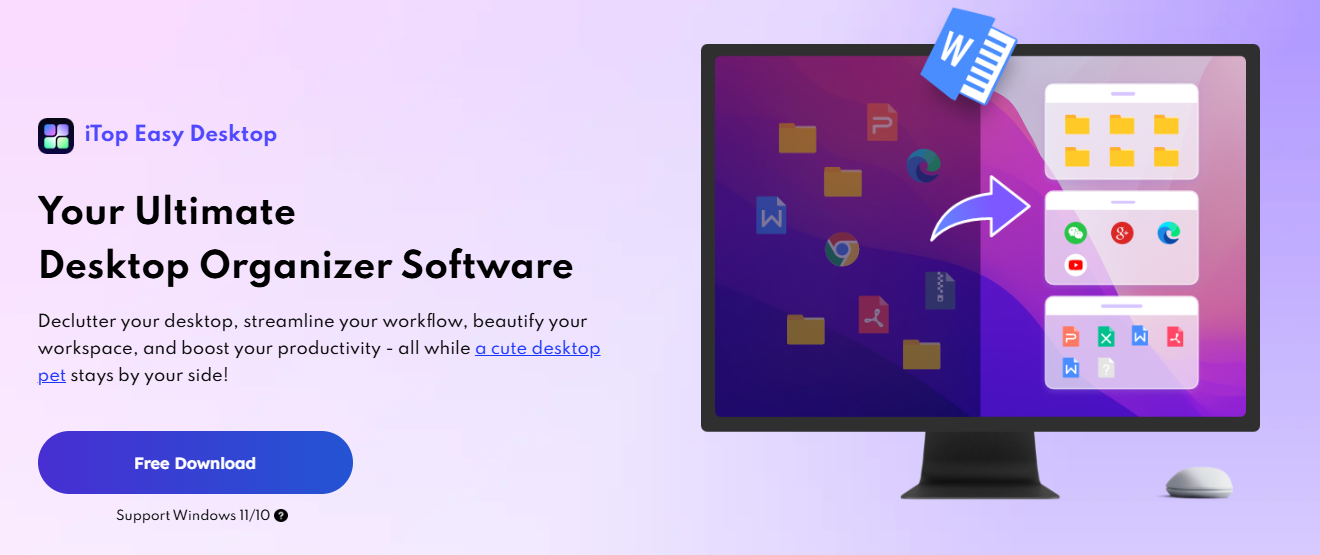
iTop Easy Desktop is an app for Windows that organizes my messy desktop into neat boxes. That’s the quick version. What really got me hooked were all the extras, such as the sticky notes, timer, weather tool, built-in search function, and an added touch: a little virtual pet that keeps an eye on my work. I was pleasantly surprised to learn that the app is produced by iTop and it takes only a few minutes to download and install.
Features That Won Me Over
At the end of three weeks, here is what remains with me:
One-Click Auto-Organization
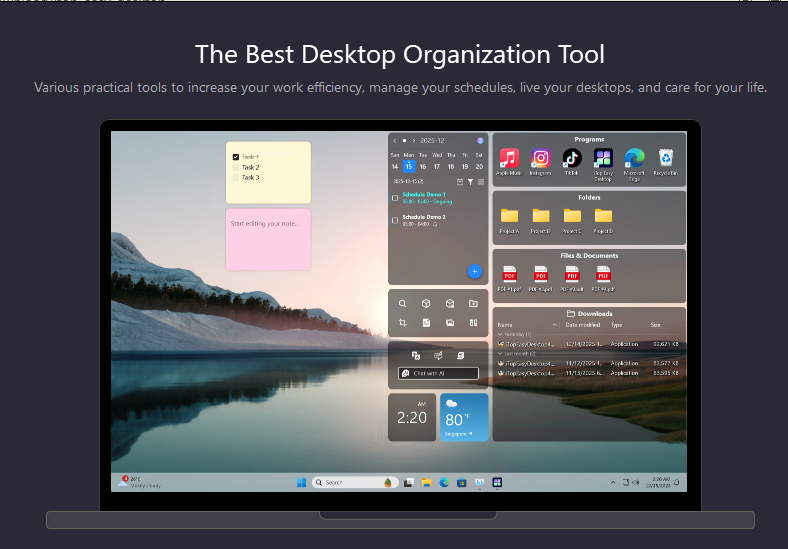
Just one click, and I find all the icons, shortcuts, stray PDFs shift around into their appropriate boxes that read Documents. Images. Apps. Folders. Four seconds, tops. I just sat there. So I created my own boxes: Urgent, Client Work, Tax Stuff. I had been trying to ignore the mess for eight months and it all got fixed before my coffee became cold.
Quick Search and Folder Portal
I’m bad with file names. Windows search never helped me much, so I stopped using it months ago. The search bar here actually works. Type three letters, get the file. Folder Portal is the other thing I didn’t know I needed. Adds a tiny version of File Explorer to my desktop so that I can browse through folders without having to open up Explorer. It seems like a minor detail. It’s anything but.
Private Box and Auto-Hide
The Private Box password-protects files for client contracts and a couple of personal things. Last week, during a screen-share when my manager spontaneously said to me I tested it. The other trick I use daily is auto-hide. My desktop is empty when I double-click. Great when someone walks in on you mid-task. You can just tell, the person who built this desktop organizer software actually uses computers.
Widgets, Wallpapers and a Desktop Pet
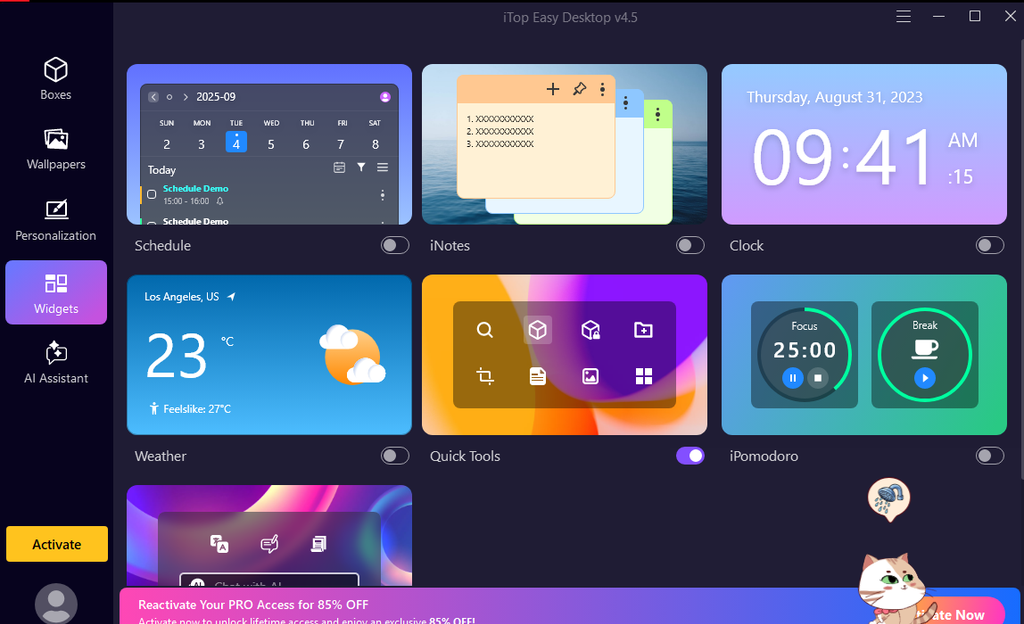
Live wallpapers, themed wallpaper packs, weather widget, sticky notes, iPomodoro app. All these tools are being used by me at the moment. My AI helper is powered by ChatGPT and there is no need for registration. Then there’s PawPal. The desktop pet. I rolled my eyes when I first saw him. Two weeks later, I click on him every time I finish a paragraph. He does this little wave. I am not proud of this. Moving it on.
Smart Layout Backup
Auto-save snapshots my setup daily. One click and I’m right back where I was if a Windows update scrambles my icons overnight (twice already). It could also show a red dot that tells me about files I haven’t sifted through yet. Snatched three random screenshots that would have been lost in the white noise of a long run. I used to think that a backup of layout would not work for me. It does a lot.
How I Set Up My Desktop?
Step 1: Download and Install
It was downloaded from the official website, and I installed the program using the installer. The entire procedure took no more than two minutes. Admin rights are needed, as is common for processes involving interaction with the Windows shell. Setup wizard is short. No jargon, no upsell popups. I was organizing my desktop within five minutes of clicking download. It was almost too convenient after years of fighting against manual filing systems that could never be counted on.
Step 2: Run the Auto-Organizer
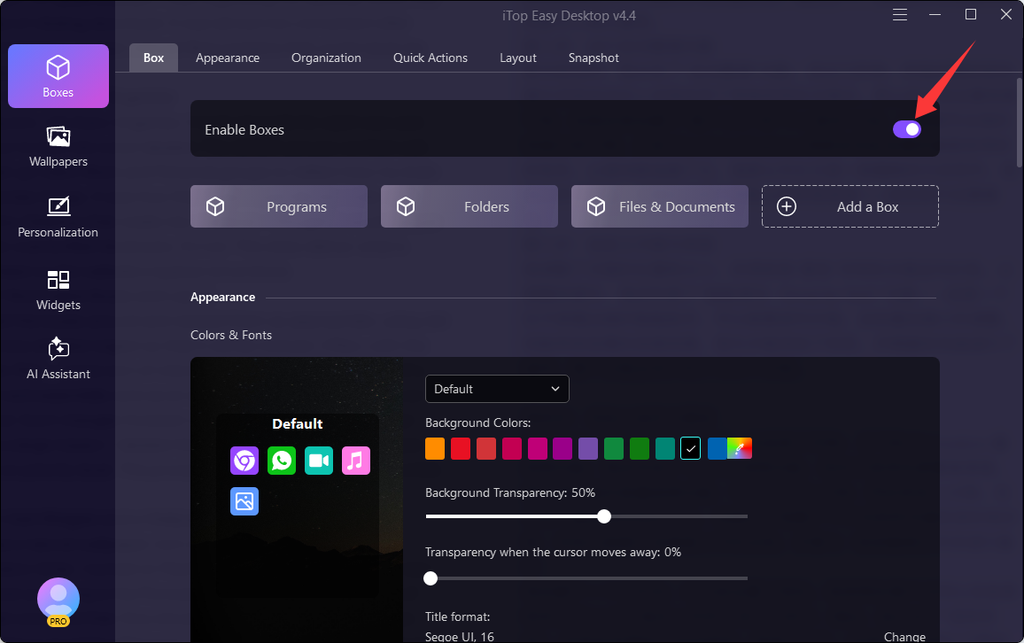
On the first launch, I hit Enable Boxes. It took seconds for each icon and shortcut to lock into a box labeled. The default groups worked well, but I set up Client Work and Personal groups to reflect how my brain categorizes things. It was how that mess could fall into order with iTop Easy Desktop that made me a believer. I thought it would be just another overstuffed bloatware. It’s not. This does deliver what is advertised on the website a sparse occurrence.
Step 3: Personalize Boxes and Layout
I moved the boxes around and resized them as appropriate, using red for the box labeled Urgent so that it will be noticed. Often, with the Smarter Roll — some sort of robot device that sits at the edge of a screen and essentially acts as an assistant to help line up boxes on demand. Such changes however are considered as small but can create a large impact. I labeled the boxes and gave them numbers based on priority level. This process took me about ten minutes total.
Step 4: Add Widgets and a Wallpaper
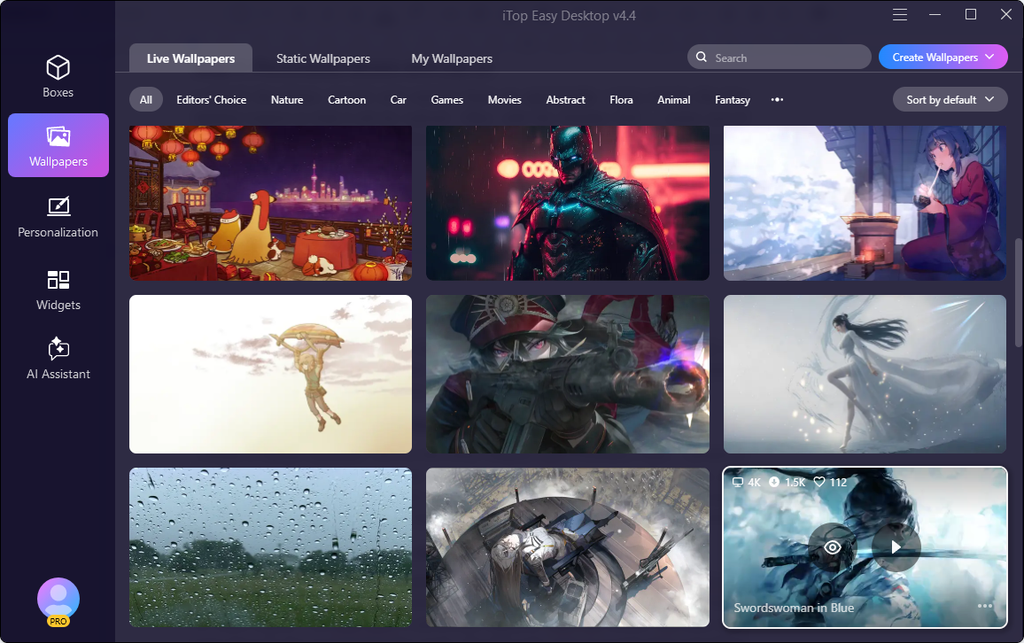
Choose a natural wallpaper, turn on the clock, weather and iPomodoro timer. I turned on PawPal too. He lives in the corner now. The most surprising is the Pomodoro one. Twenty-five minutes of focused work and then five minutes off. In two sessions I achieve more than in an entire afternoon of tab surfacing, doomscrolling and faking doing work.
Step 5: Lock Sensitive Files and Back Up
I made a folder for myself and created a password for it. I uploaded two contracts with my clients and different tax documents to that folder in PDF format. After that, I clicked on Save Layout. The auto-save is performed regularly. After two weeks, this auto save took place for the second time this week. The first auto save occurred when everything was ruined by a Windows update. The second auto save occurred as I dragged something incorrectly.
Who Should Use It?
If your messy desktop is posing a problem, you might be a freelancer, student or remote worker or even a small business owner who does not want to waste hours cleaning it up.
Final Thought
I never thought I’d end up liking desktop organizer software. I installed it simply because my desktop was getting on my nerves. But three weeks later, it has integrated itself into my daily routine. The boxes, the iPomodoro timer, the search feature or even the silly pet! I finally enjoy working at my computer. If your desktop is a mess, give it a real shot this week.