PDF Translator: How to Translate Documents Accurately Without Losing Meaning
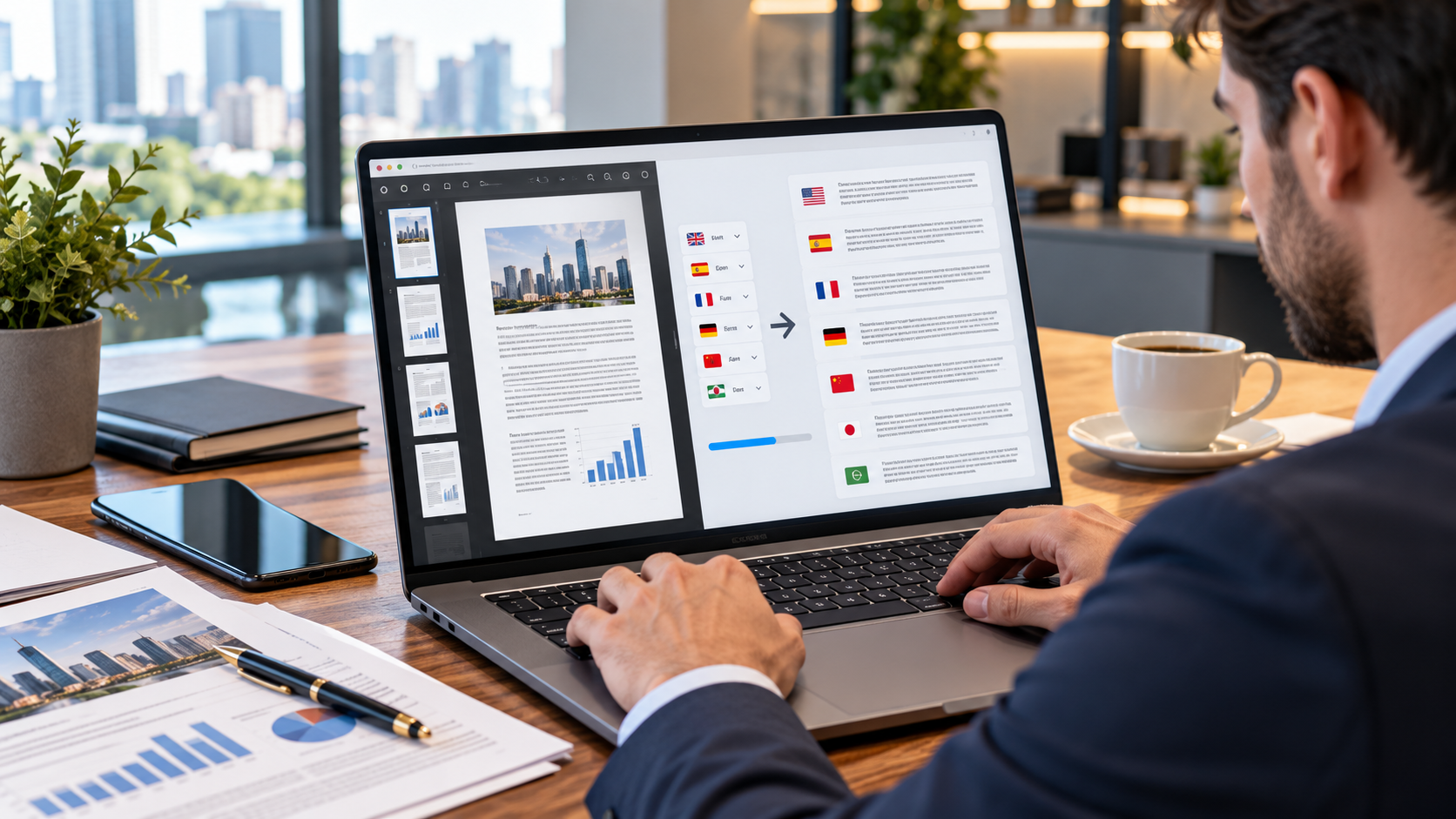
A PDF translator can turn reports, manuals, contracts, academic papers and other documents into another language without requiring users to copy every paragraph manually. Modern document translation tools can often process complete files, identify the source language and preserve much of the original formatting. However, translation quality still depends on the source PDF, whether the document contains selectable text or scanned pages, the languages involved and how carefully the translated output is reviewed.
PDF translation has become increasingly useful as businesses, students, researchers and international teams work with documents created across different countries.
The process may look simple from the user’s perspective. Upload the document, select a target language and download a translated file.
Behind that workflow, however, several technologies may be involved, including text extraction, optical character recognition, machine translation and layout reconstruction.
Understanding these steps helps users select the right method and avoid problems with formatting, privacy or mistranslated technical content.
What Is a PDF Translator?
A PDF translator is a software tool or online service that translates text contained in a Portable Document Format file from one language into another.
Unlike a basic text translator, a document translator usually attempts to process the complete file rather than isolated sentences.
Depending on the platform, it may also preserve:
- Page structure
- Headings
- Paragraphs
- Lists
- Tables
- Images
- Fonts
- Basic document styling
Current tools vary considerably in how well they handle complex layouts.
Google Translate, for example, currently supports document translation for PDF files along with DOCX, PPTX and XLSX documents. Google states that uploaded documents can be up to 10 MB and PDF files can contain up to 300 pages through its standard document translation interface.
DeepL also provides full PDF document translation and states that its service attempts to preserve formatting and design.
Adobe Acrobat can now send a PDF into Adobe Express for AI powered translation, where users can translate complete pages or selected content and export the result again as a PDF.
How PDF Translation Works
The exact process depends on how the PDF was created.
If the document contains actual embedded text, translation software can usually extract that text directly.
A scanned PDF is different.
A scan may contain only images of printed pages. In that situation, the system must first identify the characters in those images before translation can begin.
This process is known as optical character recognition, commonly shortened to OCR.
After the text is extracted, the translation engine processes the language and creates translated text.
The final stage may involve rebuilding the page layout.
Why Layout Reconstruction Matters
A PDF may contain much more than paragraphs.
It can include diagrams, tables, captions, columns, page numbers and text boxes.
Replacing English text with German, Arabic, Spanish or another language can change the amount of space required.
One translated sentence may become longer than the original.
Another may become shorter.
That is why some translated PDFs remain visually close to the source while others need manual formatting adjustments.
7 Smart Ways to Get Better Results From a PDF Translator
Translation quality depends partly on the software and partly on how the document is prepared.
The following practices can improve both accuracy and usability.
1. Start With the Best Source File Available
The source document has a major effect on translation quality.
A clean digital PDF with selectable text is usually easier to process than a low resolution scan.
If the original Word, PowerPoint or another editable source file is available, translating that source may produce better results.
DeepL specifically recommends trying the original DOCX or PPTX file when PDF translation quality is unsatisfactory because PDF processing may introduce OCR or formatting limitations.
Check Whether Your PDF Contains Selectable Text
Open the document and try to highlight a sentence.
If the text can be selected normally, the file likely contains machine readable text.
If the entire page behaves like one image, OCR may be required.
Scanned pages can still be translated, but the quality of the scan matters.
Blurred text, shadows, handwritten notes and unusual fonts can make recognition more difficult.
Improve Poor Scans Before Translation
If possible, create a cleaner scan before running a translation.
Useful improvements include:
- Straightening pages
- Increasing image clarity
- Removing dark shadows
- Scanning at a suitable resolution
- Avoiding folded pages
- Ensuring all text remains visible
A translation engine cannot accurately translate text it cannot identify correctly.
2. Choose the Right Source and Target Languages
Many platforms can automatically identify the source language.
Automatic detection is convenient, but manual selection can be useful when the document contains short sections or several languages.
If a PDF is primarily French but contains English product names, selecting French manually can reduce uncertainty.
The target language should also be chosen carefully.
Some languages have regional variants.
For example, vocabulary and spelling may differ between varieties of English, Portuguese, Spanish or French.
Adobe Express currently supports multiple regional language variants within its translation feature, including several forms of English, Spanish, French and Portuguese.
For business documents, selecting the variant used by the intended audience can improve readability.
3. Understand OCR Limitations in Scanned PDFs
OCR technology can be highly useful, but it is not perfect.
It may confuse characters that look similar.
A zero can be mistaken for the letter O.
A lowercase L may be confused with the number one.
The risk increases with small fonts, poor scans and unusual typefaces.
Google currently notes an important limitation in its document translation workflow: text detected inside images and scanned PDF pages may appear in the output but is not translated through that particular workflow.
DeepL recommends its desktop or mobile applications for translating scanned documents and also notes that scan quality can affect results.
Review Numbers and Proper Names Carefully
OCR errors become especially important when a document contains:
- Prices
- Dates
- Measurements
- Product codes
- Account numbers
- Personal names
- Addresses
- Technical specifications
A single incorrect character can change the meaning of important information.
These details should always be compared with the original document.
4. Use a PDF Translator That Preserves Formatting
A translated document is often more useful when users can recognise the structure of the original.
This matters for:
- Manuals
- Reports
- Presentations
- Brochures
- Research papers
- Training material
- Business documents
DeepL states that its PDF translation feature attempts to preserve the formatting and design of uploaded files.
Adobe Express also allows imported PDFs to be converted into editable projects before or during translation, although Adobe warns that uncommon fonts and complex layouts may change during import.
No automated tool should be assumed to preserve every design perfectly.
Complex layouts should be reviewed page by page after translation.
Check Tables and Columns
Tables can be particularly difficult because translated text may expand beyond the original cell width.
Check whether:
- Headers remain aligned
- Columns remain readable
- Text has been cut off
- Numbers stayed in the correct row
- Captions still match the correct image
This review is especially important for financial and technical documents.
5. Use Glossaries for Technical Terminology
General translation systems are designed to handle broad language.
Industry terminology can require more control.
A technical phrase in engineering, medicine, law or software may have a specific translation that differs from the most common everyday meaning.
Some professional translation platforms allow users to define preferred terminology through glossaries.
DeepL, for example, offers glossary functionality that can be applied to document translation.
A glossary can help maintain consistency across a long document.
If a company name, product name or technical term should remain untranslated, that instruction can also be documented.
Build a Terminology List Before Translating Large PDFs
For recurring projects, maintain a list containing:
- Source term
- Preferred translation
- Terms that must remain unchanged
- Product names
- Abbreviations
- Industry terminology
This can reduce inconsistent wording across multiple documents.
6. Review Privacy Before Uploading Sensitive PDFs
Uploading a document to an online translator means the file is being processed by an external service.
That may be acceptable for ordinary public material.
It requires more consideration for confidential documents.
Before uploading, think about whether the PDF contains:
- Personal information
- Financial records
- Legal documents
- Business contracts
- Medical information
- Customer data
- Internal company information
- Unpublished research
Review the provider’s privacy terms and data handling policies.
DeepL states that files submitted through its Pro service are deleted after translation.
Policies can differ across plans and platforms, so organisations should verify the conditions that apply to their specific account.
Use Approved Tools for Workplace Documents
Businesses should establish clear rules about which translation services employees may use.
A free online translator may be convenient, but convenience alone does not make it appropriate for confidential business information.
Organisations handling regulated or sensitive data may require approved enterprise services or local translation workflows.
7. Always Review Important Translations
Machine translation can save considerable time.
It should not automatically be treated as a perfect substitute for human review.
For casual reading, an automated translation may be sufficient.
For important documents, review becomes more important.
This includes:
- Contracts
- Safety instructions
- Legal notices
- Medical documents
- Immigration documents
- Academic submissions
- Technical specifications
- Public marketing material
Automated systems can misunderstand context, idioms or specialist terminology.
A fluent reviewer can identify language that sounds unnatural or changes the intended meaning.
PDF Translator for Scanned Documents
Scanned PDFs create one of the most common translation challenges.
The process may involve two separate technologies.
First, OCR turns the scanned page into machine readable text.
Second, a translation system converts that recognised text into another language.
If the OCR stage produces errors, those errors can be carried into the translation.
How to Translate a Scanned PDF
A practical workflow can include:
- Create a backup of the original PDF.
- Run OCR using software designed for scanned documents.
- Review the extracted text.
- Correct obvious recognition errors.
- Translate the corrected text or document.
- Compare the translated output with the source.
- Export the finished result.
This extra review can significantly improve important documents.
Handwritten PDFs Are More Difficult
Handwriting recognition is more difficult than recognising clean printed text.
Quality varies according to handwriting style, image clarity and language.
For important handwritten documents, manual transcription before translation may produce a more reliable result.
Online PDF Translator vs Desktop Software
Both approaches have advantages.
Online PDF Translation
Online tools are convenient because they usually require no installation.
Users upload a file, select the language and receive the translation.
This approach can be useful for occasional documents.
However, internet access is required and users should evaluate privacy before uploading confidential material.
Desktop PDF Translation
Desktop software may offer more control over file handling and document preparation.
Some services also provide desktop applications with document translation capabilities.
DeepL, for example, provides PDF translation through its desktop applications as well as its web platform.
Desktop tools can be particularly useful when OCR, editing and translation need to be combined in one workflow.
How Google Translate Handles PDF Documents
Google Translate includes a dedicated document translation feature on desktop browsers.
Users can upload a supported file, select the source and target languages and download the translated version.
Google currently supports PDF documents up to 10 MB and 300 pages through this standard interface.
However, scanned PDFs require special attention because Google notes that text detected inside scanned pages is not translated through this document workflow.
For digitally generated PDFs containing selectable text, it can provide a straightforward option.
How DeepL Handles PDF Translation
DeepL provides dedicated PDF document translation.
Its current service can preserve much of the document’s formatting and allows supported users to translate multiple files and apply glossaries.
DeepL also allows some paid users to download translated PDF content as either PDF or DOCX files.
The ability to export to Word can be valuable when the translated text needs additional editing.
DeepL itself notes that complex visual elements, custom fonts and OCR can affect results.
How Adobe Handles PDF Translation
Adobe now integrates PDF translation between Acrobat and Adobe Express.
A PDF can be opened in Acrobat and sent to the translation workflow, where users can choose target languages and translate all pages or selected content.
Adobe Express also provides editable PDF import.
As of September 2026, Adobe’s current documentation states that its translation feature supports 59 languages and regional variants.
Complex documents may still need layout review.
Adobe warns that scanned, secured, large or complex PDFs may not translate normally, and uncommon fonts can affect output.
PDF Translator for Business Documents
Business translation requires both accuracy and consistency.
A company translating product information, proposals or internal documentation should establish a repeatable workflow.
Start by deciding which terminology must remain consistent.
Keep original source files when possible.
Use approved translation platforms.
Have important customer facing content reviewed by someone fluent in the target language.
Translate the Source Document When Possible
A PDF is often the final output from another program.
If the original Word, PowerPoint or design file exists, it may be easier to translate that source file and generate a new PDF afterward.
This can make layout adjustment easier.
It also reduces some of the extraction problems associated with complex PDFs.
PDF Translator for Academic Documents
Students and researchers often use PDF translation to read papers published in another language.
Automated translation can help users understand the general meaning of a document.
However, academic terminology should be reviewed carefully.
A translated research paper should not automatically be treated as an authoritative replacement for the original.
When quoting research, consult the original text where possible.
Names of researchers, equations, citations and references should also be checked carefully because they may not require translation at all.
PDF Translator for Legal Documents
Legal documents require additional caution.
Small wording differences can affect interpretation.
Automated translation may help someone understand the general subject of a document, but legal proceedings may require certified or professionally prepared translations.
Requirements differ by jurisdiction and institution.
Anyone submitting translated documents to a court, immigration authority or government department should check the official translation requirements before relying on an automated tool.
How to Keep PDF Formatting After Translation
Perfect formatting cannot always be guaranteed.
However, several practices can improve the result.
Use a clean source document.
Avoid unnecessary text boxes.
Use widely supported fonts.
Keep editable source files.
Review the translated version visually.
If the layout shifts, adjust font size, line spacing or text boxes where appropriate.
Right to Left Languages Need Extra Review
Languages such as Arabic and Hebrew may require substantial layout changes because text direction changes.
A document originally designed left to right may need repositioned tables, headings and images.
Translation software may automate some of this work, but professional review is still valuable for important publications.
Common PDF Translation Mistakes
One mistake is assuming that every PDF contains editable text.
Another is uploading confidential material without reading privacy policies.
Other common errors include:
- Ignoring OCR mistakes
- Translating names unnecessarily
- Failing to review tables
- Using the wrong language variant
- Trusting technical terminology without checking it
- Assuming formatting will remain perfect
- Publishing machine translation without proofreading
Avoiding these mistakes can significantly improve the final document.
How to Choose the Best PDF Translator
There is no single best platform for every situation.
Choose according to the document.
For a simple report, ease of use may matter most.
For technical documentation, glossary support may be more important.
For confidential business information, privacy and enterprise controls may become the priority.
Consider:
- Supported languages
- File size limits
- Page limits
- OCR capability
- Formatting preservation
- Glossary support
- Privacy policy
- Export formats
- Mobile support
- Pricing
- Editing tools
Test important workflows with a sample document before committing to large translation projects.
Can AI Improve PDF Translation?
Modern translation systems increasingly use advanced language models to consider broader context rather than translating words independently.
This can improve fluency and help the software interpret sentences more naturally.
Adobe’s current translation feature uses generative AI and allows users to adjust tone for supported documents.
Even so, AI does not eliminate the need for verification.
Language contains ambiguity.
Context can depend on specialised knowledge that a general translation system may not fully capture.
Human review remains especially important when accuracy has legal, financial, medical or safety consequences.
Frequently Asked Questions
What is a PDF translator?
A PDF translator is a tool that converts text inside a PDF document into another language and may also attempt to preserve the original layout and formatting.
Can a PDF translator translate scanned documents?
Some tools can translate scanned PDFs using OCR, but scan quality affects accuracy. Certain platforms may require a separate OCR workflow for scanned pages.
Can I translate a PDF without losing formatting?
Many modern tools attempt to preserve the original layout, but complex tables, fonts, columns and graphics may shift and should be reviewed after translation.
Is an online PDF translator safe for confidential files?
It depends on the provider and account type. Review privacy, retention and security policies before uploading contracts, financial information or other sensitive documents.
Can Google Translate translate complete PDF files?
Yes. Google currently supports PDF document translation on desktop for files up to 10 MB and 300 pages, although scanned page text has additional limitations.
Should professional documents be reviewed after PDF translation?
Yes. Legal, technical, academic, medical and customer facing documents should be checked for terminology, meaning, layout and important numerical information.
Conclusion
A PDF translator can make multilingual documents much easier to access by combining text extraction, translation and formatting into one workflow. The best results come from using a clean source file, understanding OCR limitations, selecting a suitable translation platform and reviewing important terminology carefully. For sensitive or high stakes documents, privacy controls and human verification remain just as important as translation speed.