How to Use Advanced SystemCare to Deeply Clean and Optimize Your PC
Every Windows PC slows down eventually. Over months of use, browsers store cache, apps leave temporary files behind, and background programs pile up quietly. Each item seems harmless, but together they eat storage space and processing power. Left unchecked, this buildup leads to longer boot times, lagging apps, and shrinking free space.
Advanced SystemCare is an all-in-one PC cleaner and optimization utility built to address this clutter. It scans your system, removes unnecessary files, and adjusts settings to help restore computer speed. This guide explains what Advanced SystemCare does and shows you how to use it, step by step.
Key Features of Advanced SystemCare
Advanced SystemCare brings several maintenance tools into one dashboard. Here are the main features everyday users will rely on:
- AI-Powered Deep Cleaning: The tool automates system maintenance by scanning for junk files, leftover temporary data, and registry clutter. The scan covers browser cache, Windows temporary files, and outdated registry entries that build up over time. It then removes them in a single pass, so you don’t need to dig through folders manually.
- Startup & Speed Optimization: It manages startup apps and disables unnecessary background tasks, which can shorten boot time and free up memory. You can review each startup item before changing it, so you stay in control. Actual results depend on your hardware and how much clutter your PC carries.
- Software & Uninstaller Integration: The built-in uninstaller removes programs and clears the leftover traces they often leave behind. This keeps your Programs list tidy and frees up disk space. It can also flag outdated software, helping you keep your apps updated and more secure.
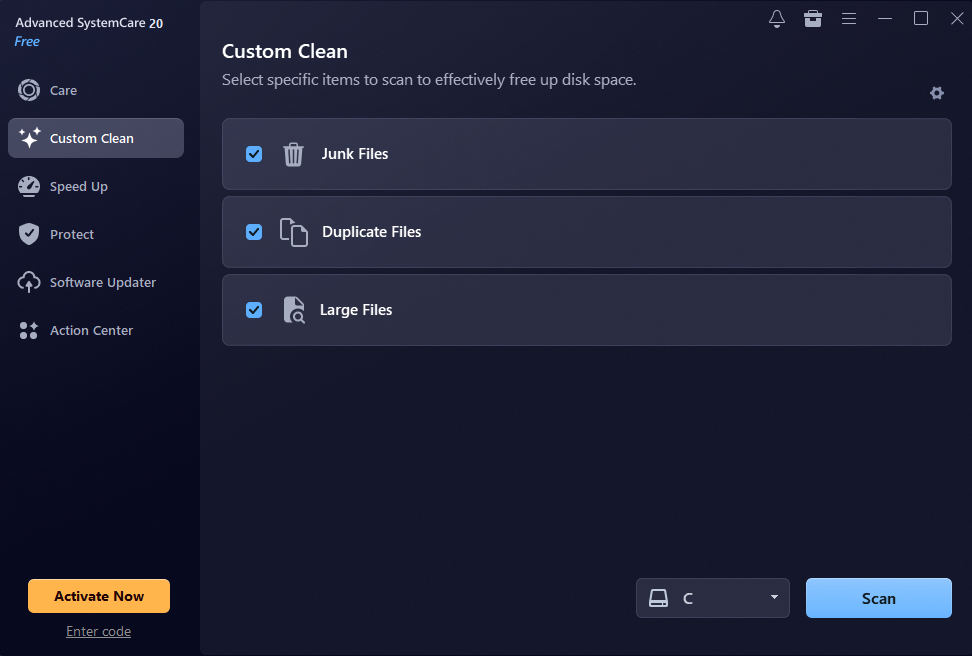
- Custom Clean: Advanced SystemCare 20 launched a new feature that quickly identifies duplicate and large files to reclaim valuable disk space effortlessly.
Together, these tools cover three common causes of a sluggish PC: wasted storage, heavy startup loads, and leftover software. Because everything sits in one interface, beginners can maintain their system without learning several separate utilities.
Step-by-Step Guide: How to Deep Clean and Optimize Your PC
Follow these four steps to complete your first deep clean. Each step is simple, even if you have never used a PC cleaner before.
- Download and Install the Tool: Get the installer from the official source, Advanced SystemCare, to avoid modified or bundled files. The free version covers basic cleaning, while the paid version adds extra tools. Close other programs before you begin so the installation runs smoothly.
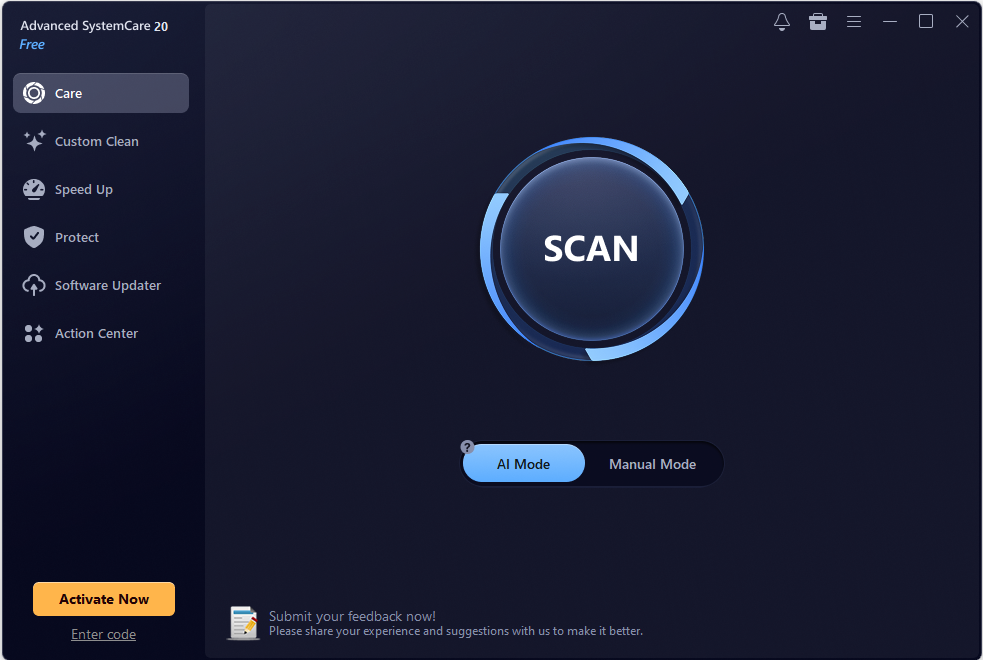
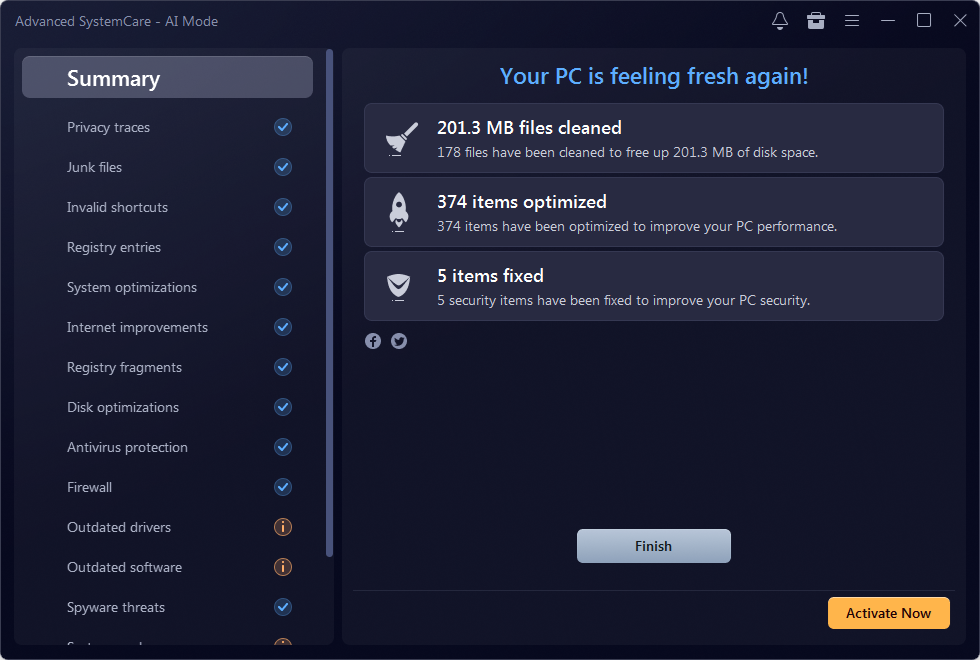
- Launch the Software and Run the AI Scan: Open the program and select the “Care” tab. Choose the AI-powered scan option and click Scan. The scan checks for junk files, registry issues, privacy traces, and system weaknesses in one go. Avoid using your PC heavily during the scan, since this helps it finish faster and avoids interruptions.
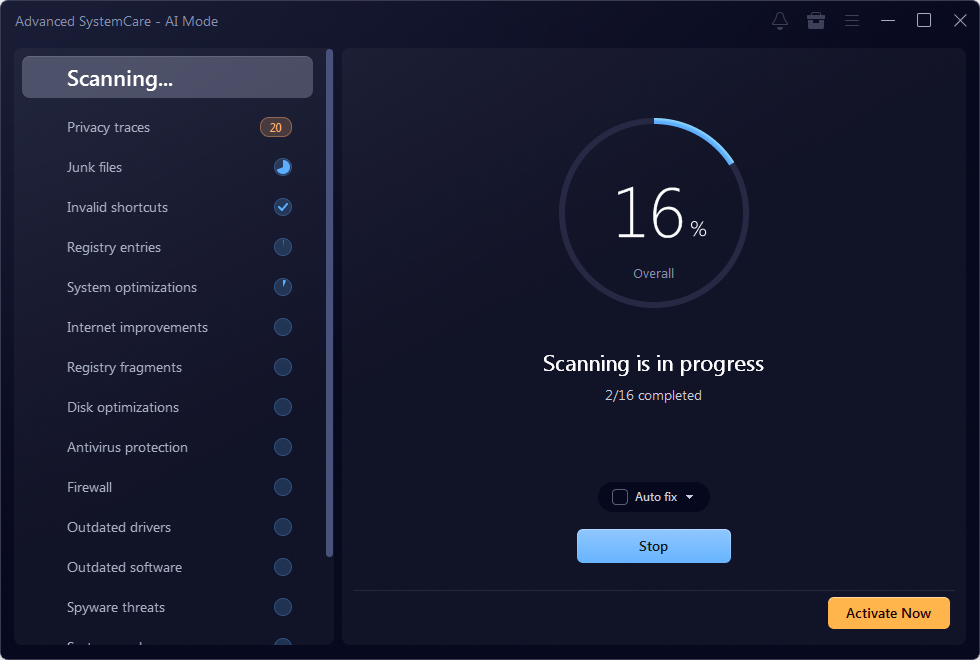
- Review the Detected Issues: When the scan finishes, look through the results. They may include junk files, invalid registry keys, and security risks. Tick the items you want to address, then click Fix. Don’t worry if the list looks long, because most entries are low-risk clutter. Still, read the descriptions for anything unfamiliar before you approve it.
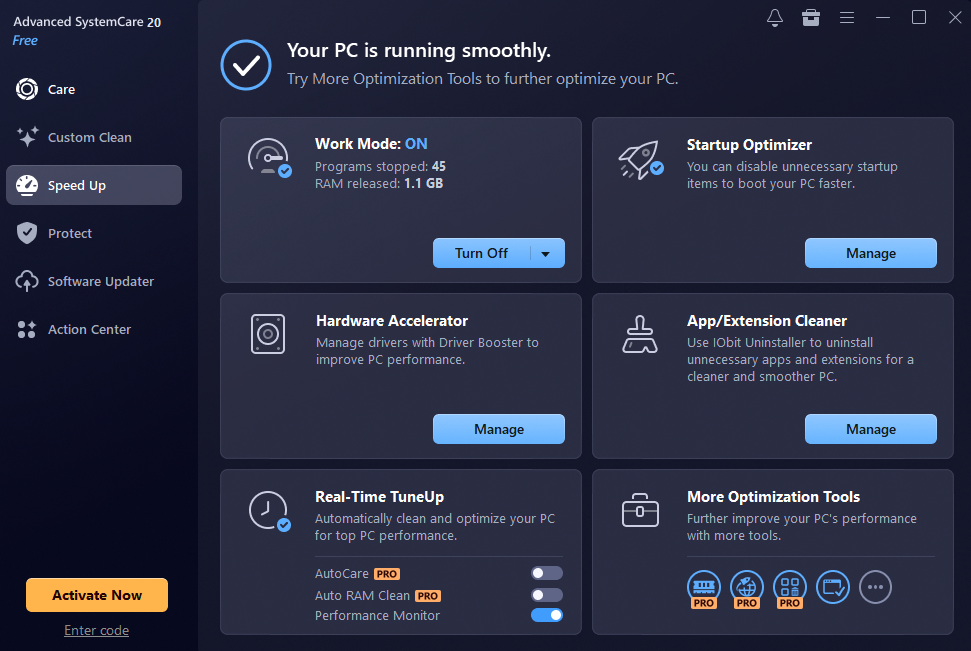
- Configure Speed Settings: Go to the “Speed Up” tab. Open Startup Optimization to see which programs launch with Windows, and disable those you rarely use. These changes help reduce the number of programs competing for resources at boot. You can reverse any setting later if a program you need stops starting automatically.
Tip: Create a Windows restore point before your first registry cleanup, then restart your PC afterward so all adjustments take effect.
Conclusion and Best Practices
Regular maintenance matters more than one big cleanup. Think of maintenance like changing the oil in a car: small, regular care prevents bigger problems. Running Advanced SystemCare weekly or monthly keeps clutter from building up again and helps your PC stay responsive.
Pair it with a few simple habits: uninstall apps you no longer use, restart your computer regularly, and keep Windows updated. These small steps support any optimization tool.
Whichever Windows cleaner you choose, keep it updated so it can recognize new junk file types and threats. Used consistently, Advanced SystemCare is a practical option for keeping everyday PCs running smoothly, though results will vary by system.
FAQs About PC Cleaner Free
- What are the system requirements for Advanced SystemCare?
Advanced SystemCare 20 can run smoothly on a computer with 512 MB of RAM, a 1 GHz processor or faster, 300 MB of free hard disk space, 1024*768 screen resolution and above.
- How frequently should I scan and clean my PC with Advanced SystemCare?
We recommend running AI Scan daily or a few times a week, and deeper features like Registry Clean weekly or as needed.
- Can I run Advanced SystemCare alongside other PC maintenance software?
Advanced SystemCare works with most software, but we recommend avoiding running multiple system utilities at the same time.