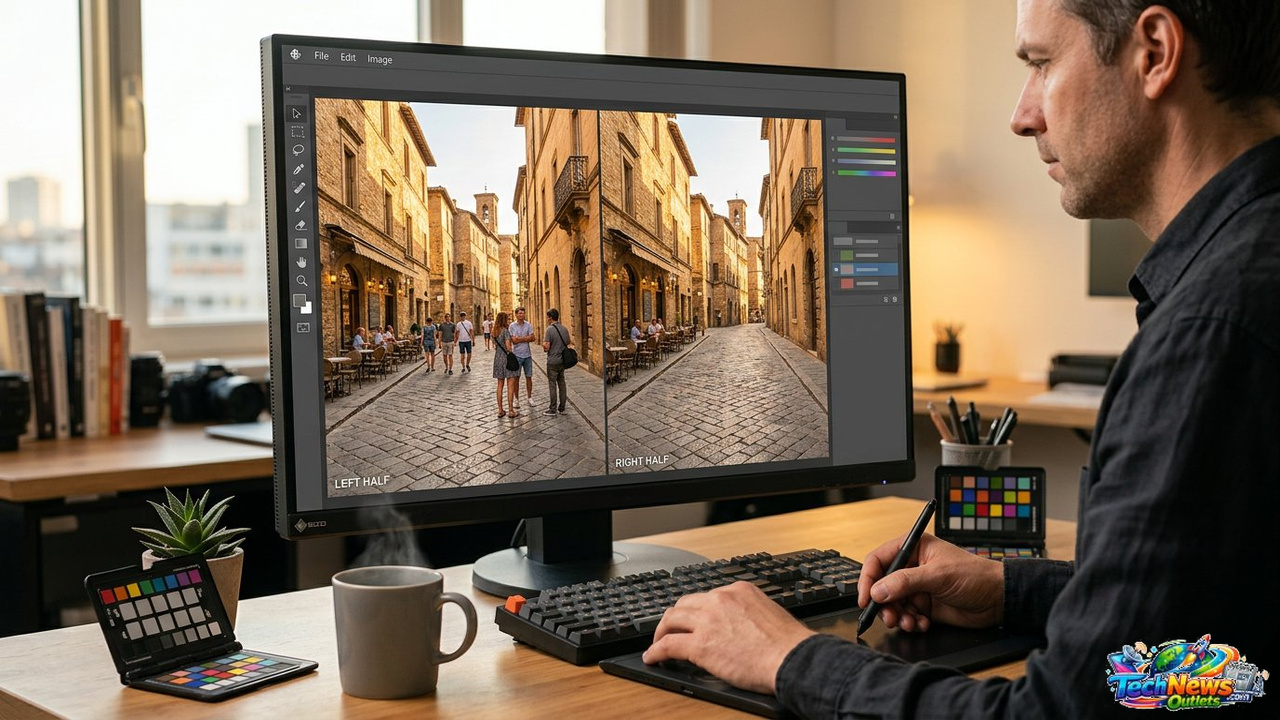
Remove People From Photos With Adobe Firefly: 7 Powerful Tools Tested on Real Backgrounds
A nearly perfect photograph can become difficult to use because one stranger walked into the frame at exactly the wrong moment. Travel photographs have tourists blocking landmarks, property images contain people in the distance, street photos have distracting passersby, and product or lifestyle shoots can include crew members who were never supposed to remain in the final image. Learning how to remove people from photos with Adobe Firefly
provides one AI-assisted solution: select the unwanted person, generate or remove the selected area using the available Firefly workflow, and let generative technology reconstruct a plausible background from surrounding visual context. The difficult part is not deleting the person.
The difficult part is creating whatever should exist behind them. If someone is standing in front of a plain sky, AI removal is relatively straightforward. Put the same person in front of a patterned brick wall, a railing, pavement markings, reflections, signage, furniture, architectural details, or another partially hidden person, and the task becomes much harder.
This is where differences between AI removal tools become visible. A weak result often looks fine at first glance but fails under inspection. Brick courses stop lining up. Floorboards change direction. Window frames become asymmetric. Reflections remain after the person disappears. Shadows point toward a subject who no longer exists.
A strong editing workflow therefore needs more than a dramatic before-and-after preview. It needs inspection at normal viewing size and close zoom.
This guide compares seven useful tools and workflows for removing people, with particular attention to realistic backgrounds rather than artificially easy demo images. Adobe Firefly receives the most attention, but Photoshop, Lightroom, Google Photos, Apple Photos, Canva, and cleanup-focused AI tools also deserve consideration depending on the type of image and level of control required.
Current-product note: AI image-editing applications evolve rapidly. Adobe Firefly models, generative-credit policies, Photoshop integrations, Lightroom tools, mobile editing features, pricing, and availability can change. Verify current 2026 functionality through official product documentation before choosing software for a professional workflow.
What Does It Mean to Remove People From Photos With Adobe Firefly?
To remove people from photos with Adobe Firefly is to use Adobe’s generative-AI technology and related editing interfaces to eliminate unwanted human subjects and reconstruct the newly exposed area.
The exact interface depends on where Firefly capabilities are being used.
Adobe provides generative features through its Firefly ecosystem and integrations with creative applications such as Photoshop, while individual applications may also include dedicated removal or retouching tools.
This distinction matters because Firefly is not simply a traditional eraser.
A conventional eraser removes pixels.
Generative editing attempts to create new pixels that plausibly belong in the image.
Why Background Reconstruction Is the Real Challenge
Imagine a person standing in front of a beach.
The model may need to generate additional sand and water.
Now imagine someone standing in front of an ornate European building.
The model may need to infer hidden stonework, windows, shadows, railings, and decorative patterns.
The second task contains much less certainty.
No AI model can genuinely know what was physically behind an opaque person unless information exists elsewhere in the image or another reference.
It generates a plausible reconstruction.
That is an important distinction for documentary, journalistic, forensic, insurance, scientific, and evidentiary photography.
1. Remove People From Photos With Adobe Firefly for Generative Background Reconstruction
Adobe Firefly is particularly useful when the removed person occupies an area that requires more than simple texture copying.
Generative AI can interpret the surrounding scene and attempt to create coherent replacement content.
How to Remove People From Photos With Adobe Firefly
A typical workflow is conceptually simple.
Upload or open the image in the appropriate Adobe generative editing interface.
Select the person you want to remove.
Include enough of the person’s edges, clothing, hair, and other connected areas to avoid leaving fragments behind.
Then apply the relevant removal or generative function.
The AI analyses surrounding visual information and generates replacement pixels.
Review alternatives when the interface supplies multiple results.
Selection Quality Matters
The selection should usually include more than the most obvious central portion of the subject.
Watch for:
Loose hair
Transparent fabric
Shoes
Fingers
Bags
Hats
Umbrellas
Reflections
Ground shadows
Objects carried by the person
Selecting the body while leaving the shadow behind creates an obvious editing artifact.
Remove People From Photos With Adobe Firefly in Smaller Sections
For difficult images, avoid selecting half the photograph at once.
Remove one person first.
Inspect the result.
Then remove the next.
Smaller selections give the model more unchanged context from which to infer the surrounding scene.
This can also make mistakes easier to undo.
Firefly Works Best When Context Is Predictable
Strong candidates include people standing against:
Sky
Grass
Sand
Water
Simple pavement
Walls with limited detail
Blurred backgrounds
Repeated environmental textures
More difficult backgrounds include dense text, faces, highly geometric architecture, unique artwork, complex shadows, and reflections.
2. Remove People From Photos With Adobe Firefly in Photoshop for More Control
For professional retouching, Photoshop can offer a more complete environment because AI generation can be combined with conventional editing.
This combination matters when the first generated result is close but imperfect.
Why Photoshop Adds Value
A difficult person-removal project may need:
Selection refinement
Generative Fill
Remove Tool
Clone Stamp
Healing
Content-Aware techniques
Masks
Layers
Perspective correction
Color adjustment
Manual compositing
Firefly-based generation can create the bulk of the reconstructed background, while traditional tools repair small artifacts.
Remove People From Photos With Adobe Firefly and Keep Edits Non-Destructive
Whenever practical, preserve the original layer.
Work on duplicates or generated layers.
Use masks.
Keep the original file untouched.
This lets you compare the edited area with the source and return to earlier decisions.
Non-destructive workflows are particularly important for paid client projects because revision requests can arrive long after the first edit.
Use Generative Fill Where Inference Is Needed
A traditional clone tool is excellent when the correct replacement texture is already visible nearby.
Generative Fill becomes more interesting when software needs to infer new visual structure.
For example, if a tourist blocks part of a park bench, cloning may duplicate an obviously incorrect portion of the bench.
Generative AI may have a better chance of reconstructing its continuation.
Manual Retouching Still Matters
AI can create a structurally plausible replacement that has the wrong:
Noise
Sharpness
Color temperature
Grain
Texture scale
Perspective
A skilled retoucher can integrate those differences manually.
The best AI workflow does not necessarily eliminate traditional Photoshop skills.
3. Adobe Lightroom: Strong for Photographers Who Need Fast Removal
Lightroom is attractive to photographers because removal tools live inside a broader photography workflow.
Users can organize, develop, color-correct, and retouch images without necessarily moving every photograph into a separate pixel-editing application.
Lightroom Works Well for Batch-Oriented Photography
Consider a wedding or travel photographer with hundreds of images.
Opening every frame individually in a full Photoshop workflow can be inefficient.
Lightroom’s removal capabilities can be more practical when unwanted people are relatively small or the backgrounds are uncomplicated.
When Lightroom Can Be Enough
It may perform well when:
The person is distant.
Background texture repeats.
The subject occupies a small percentage of the frame.
No important geometric structure is hidden.
The image will be published at moderate size.
For more complicated reconstruction, moving the image into Photoshop or another detailed editor may be worthwhile.
Inspect the Result at 100%
Small AI artifacts can disappear in Lightroom’s fit-to-screen view.
Zoom into:
Feet
Background edges
Building lines
Text
Railings
Shadows
Repeated textures
A result suitable for Instagram may not be suitable for a large print.
4. Google Photos: Useful for Quick Everyday Person Removal
Google Photos has increasingly incorporated computational and generative editing features into everyday photo management.
For smartphone users, this can make unwanted-object removal remarkably accessible.
The key advantage is convenience.
Google Photos Can Be Appropriate When Speed Matters
Someone editing a holiday image may not want to build layers, masks, and advanced selections.
A mobile-friendly removal feature can solve straightforward distractions quickly.
This makes it useful for:
Travel images
Casual social photographs
Family pictures
Street scenes
Background photobombers
Everyday smartphone photography
Complex Backgrounds Still Require Inspection
AI models can generate plausible but incorrect architecture.
A row of railings may acquire an extra post.
Brickwork can bend.
A person’s reflection can remain.
The quality of the user interface does not change the underlying need to inspect generated pixels.
Compare Against Adobe Firefly for Larger Edits
For casual cleanups, convenience can matter more than maximum control.
For a commercially important image or large distracting person, an Adobe workflow may offer more ways to intervene manually after the first AI reconstruction.
That makes tool choice partly about what happens after AI fails.
5. Apple Photos: Convenient for Supported Apple Workflows
Apple has also expanded intelligent cleanup functionality within its photo ecosystem on compatible hardware and software.
For eligible users, built-in photo cleanup reduces the need to export an image to another application for basic distraction removal.
Apple Photos Is Useful for Simple Background People
The workflow can suit someone who wants to clean an ordinary photo before messaging it, adding it to an album, or posting it socially.
No specialist retouching workflow is required.
This lowers the technical barrier considerably.
Device and Software Support Matter
Availability of AI-assisted Apple features can depend on current hardware, operating-system version, language, region, and product support.
Check current Apple documentation rather than assuming every iPhone or Mac supports the same functions.
Built-In Convenience vs. Professional Control
If the first result works, the built-in tool is efficient.
If it fails badly, options can be more limited than in Photoshop.
That makes Apple Photos strong for simple cleanup and less compelling for detailed commercial reconstruction.
6. Canva: Practical for Social and Marketing Designs
Canva is not primarily a high-end photographic retouching system. Its strength lies in combining image editing with graphic design. For marketers and social-media creators, that can be an advantage.
Remove a Person and Continue Designing
A creator might:
Remove a distracting person.
Resize the image.
Add a headline.
Insert brand graphics.
Create several social formats.
Export.
Doing these jobs inside one platform reduces file movement between tools.
Canva Is Useful for Moderate-Resolution Publishing
Marketing images often appear on:
Websites
Presentations
Email campaigns
Digital advertisements
For these uses, a technically imperfect reconstruction may be visually acceptable once the photograph is displayed at a smaller size and combined with graphic elements.
Do Not Use Convenience as a Substitute for Quality
If a background contains important branded architecture, product information, or text, inspect it carefully.
AI removal can alter details that carry commercial meaning.
A marketing tool should not fabricate a feature that did not exist in the original scene.
7. Cleanup-Focused AI Tools Can Be Fast for Simple Jobs
A broad category of specialist AI cleanup services focuses almost entirely on removing unwanted objects or people.
Their advantage is minimal setup.
Upload.
Brush over the unwanted object.
Download the result.
Why Specialized Cleanup Tools Remain Popular
Many users do not want a complete Adobe subscription or graphic design suite.
They want one operation.
For straightforward images, a dedicated cleanup tool can provide a quick solution.
Privacy Requires Attention
Uploading photographs to a small or unfamiliar online service creates privacy questions.
Before sending personal images, investigate:
Data retention
Training use
Deletion
Storage
Account security
Privacy policy
Jurisdiction
Whether images remain private
This becomes particularly important for photographs involving children, homes, confidential workplaces, medical situations, identity documents, or sensitive locations.
Free Tools Often Have Trade-Offs
Possible limitations include:
Lower export resolution
Watermarks
Upload limits
Compression
Fewer generations
Limited privacy controls
Advertisements
No batch processing
Commercial-use restrictions
Always inspect current terms.
Remove People From Photos With Adobe Firefly: How We Tested Real Backgrounds
A meaningful comparison needs difficult images.
Removing a small person from a blurry field says little about how a tool behaves under realistic conditions.
A useful test set contains several background categories.
Test 1: Beach and Natural Texture
This is relatively forgiving.
Sand, water, clouds, and vegetation contain irregular textures, so small reconstruction errors can be difficult to notice.
Many modern tools should perform reasonably well here.
Test 2: Brick Wall
Repeated geometry exposes failures.
Look for:
Broken mortar lines
Wrong brick dimensions
Pattern repetition
Perspective errors
Color differences
AI may create individually convincing bricks while damaging the wall’s larger structure.
Test 3: Urban Architecture
This is substantially harder.
Windows, columns, railings, paving, doors, signs, and shadows need to remain geometrically coherent.
The removed person may conceal unique architectural information that the model must invent.
Test 4: Reflections
Remove someone standing beside a shop window and inspect the glass afterward.
Did their reflection disappear too?
If not, the edit immediately looks artificial.
The same issue applies to:
Mirrors
Polished floors
Cars
Water
Metal surfaces
Test 5: Crowds
Removing one person from a crowd can expose body parts belonging to people behind them.
AI may reconstruct those people incorrectly.
Human anatomy becomes one of the strongest tests of generative fill.
Test 6: Text and Signage
Text remains challenging for generative image editing.
If a person covers several letters on a store sign, the model may produce plausible-looking nonsense rather than the actual missing wording.
Do not rely on generation to recover hidden text accurately.
Why Adobe Firefly Can Produce a Plausible but False Background
This is fundamental to understanding generative removal.
If a tourist blocks an entire doorway, Adobe Firefly cannot see the doorway through the person.
It has no hidden camera data.
It predicts what a plausible doorway might look like from:
Surrounding pixels
Learned visual patterns
Scene structure
Selection context
The output can look completely realistic while being historically or physically inaccurate.
This Is Fine for Many Creative Uses
A vacation photograph does not necessarily require forensic reconstruction.
If the generated pavement looks natural, the edit may satisfy its intended purpose.
It Is Not Fine for Every Use
Be careful with:
Journalism
Evidence
Insurance claims
Scientific records
Medical photography
Real-estate documentation
Historical archives
Security imagery
Legal disputes
In these contexts, generative removal can alter factual information.
Edited images may need to be preserved separately from originals and clearly identified.
How to Remove People From Photos With Adobe Firefly More Effectively
Start with the highest-quality original available.
Compressed screenshots give the model less useful visual information than a full-resolution source image.
Next, make a deliberate selection.
Include the complete unwanted subject plus relevant shadows or reflections when they should also disappear.
Generate several alternatives.
Do not assume the first one is best.
Then inspect structural details.
Finally, use conventional retouching to correct local issues when necessary.
Do Not Over-Select
Selecting a very large region forces Firefly to invent more of the image.
That increases uncertainty.
Preserve as much correct original background as possible.
Do Not Under-Select
Leaving part of a shoe, hair, shadow, bag strap, or reflection creates obvious artifacts.
The ideal selection contains everything that belongs to the unwanted subject while preserving surrounding information.
Remove Complicated People Separately
Suppose three tourists overlap.
Removing all three at once may leave AI inventing a substantial portion of the scene.
Try removing the most isolated person first.
Then evaluate the remaining structure.
Sequential editing can provide better context.
Remove People From Photos With Adobe Firefly on Busy Streets
Street photographs combine several challenging elements:
Cars
Pedestrians
Signs
Windows
Reflections
Road markings
Architecture
Street furniture
Shadows
The best strategy is to preserve important geometry.
If the unwanted person crosses a straight curb, inspect whether Firefly continues that curb at the correct angle.
If the person covers a car, inspect wheels, doors, reflections, and vehicle proportions.
If generated details remain visibly wrong, manually reconstruct the area using nearby source information.
Remove People From Photos With Adobe Firefly From Vacation Photos
Travel photos are one of the most natural use cases.
Popular landmarks are rarely empty.
Removing unrelated tourists can make the photograph feel closer to the moment the photographer wanted to capture.
However, be cautious when the landmark’s unique details are hidden.
A generated cathedral carving, historic inscription, sculpture, or mosaic may look believable while being completely invented.
For personal social sharing, that may be acceptable.
For travel publishing intended to document the actual place, greater care is appropriate.
Remove People From Photos With Adobe Firefly for Real Estate
Real-estate photography often benefits from removing accidental people who should not be part of the listing.
But editing must not materially misrepresent the property.
Removing a photographer’s accidental reflection can be different from generating new permanent building features.
Do not use AI to:
Remove structural defects.
Create a view that does not exist.
Invent landscaping.
Hide neighboring structures.
Remove fixed utility equipment where disclosure matters.
Generate a larger room.
Alter permanent property characteristics deceptively.
Real-estate advertising rules differ by jurisdiction, so professionals should follow applicable legal and industry standards.
Remove People From Photos With Adobe Firefly for E-Commerce
Product images can contain:
Hands
Models
Assistants
Reflections
Equipment
Studio stands
Unwanted background people
AI removal can accelerate cleanup.
The product itself should remain accurate.
Inspect labels, dimensions, colors, buttons, seams, and packaging after editing.
If Firefly reconstructs part of the product incorrectly while removing a hand, the image can become misleading.
Remove People From Photos With Adobe Firefly for Wedding Photography
Wedding photographers sometimes need to remove:
Venue staff
Distant guests
Photographers
Video crew
People crossing backgrounds
Temporary distractions
The challenge is preserving genuine guests.
If an unwanted person overlaps someone important, generative reconstruction may alter the important person’s body or clothing.
These edits deserve manual review.
Keep original RAW files.
Never overwrite the only copy.
Remove People From Photos With Adobe Firefly for Group Photos
Removing someone from a formal group photograph is more difficult than removing a distant tourist.
The person may overlap:
Arms
Hands
Clothing
Furniture
Other people
Shadows
The AI must reconstruct details that were never recorded.
For emotionally or historically important photographs, consider whether the edit should be clearly treated as a creative version rather than a factual record of the group.
Remove People From Photos With Adobe Firefly Without Damaging Shadows
Shadows provide spatial information.
If the person disappears but the shadow remains, viewers can sense something is wrong even before identifying why.
Include the subject’s associated shadow when appropriate.
However, not every nearby shadow belongs to them.
Study lighting direction.
A large shadow may come from another person or object outside the frame.
Removing the wrong shadow can make the scene physically inconsistent.
Remove People From Photos With Adobe Firefly Around Reflections
Reflections are often overlooked because attention remains on the main subject.
After removal, check every reflective surface.
A person may appear in:
Mirror
Window
Sunglasses
Water
Car paint
Polished metal
Glossy table
Floor
Firefly may or may not infer all of these relationships automatically.
Multiple cleanup passes can be necessary.
Remove People From Photos With Adobe Firefly Around Text
When a person blocks text, the actual hidden letters are unknown unless another source contains them.
Generative AI can invent text.
For meaningful signage, find another photograph or reconstruct the text manually from verified information.
Do not publish generated wording as though the software recovered the original text.
Generation is prediction, not x-ray vision.
Adobe Firefly vs. Photoshop for Removing People
This comparison is partially artificial because Adobe increasingly integrates Firefly technology within Photoshop workflows.
Firefly supplies generative capabilities.
Photoshop supplies a broader professional editing environment.
For simple images, a Firefly web workflow can be enough.
For difficult commercial retouching, Photoshop offers more control around the generated content.
That includes masks, layers, manual cloning, transformations, and detailed local correction.
Adobe Firefly vs. Lightroom for Removing People
Lightroom is convenient for photography workflows.
Firefly-oriented generation becomes valuable when substantial reconstruction is required.
A photographer processing hundreds of travel images may start in Lightroom.
Only difficult frames need to move into a more detailed generative or Photoshop workflow.
The best system can therefore use both rather than picking one permanently.
Adobe Firefly vs. Google Photos
Google Photos emphasizes accessible consumer editing.
Adobe Firefly is more closely connected to a broader professional creative ecosystem.
For a quick smartphone cleanup, Google may be sufficient.
For a high-resolution image that needs precise reconstruction and additional manual correction, Adobe’s wider toolchain can provide more flexibility.
Adobe Firefly vs. Apple Photos
Apple Photos can be convenient when the image already lives inside an Apple workflow and the edit is straightforward.
Adobe becomes more attractive when creators need more control over selection, generated alternatives, file formats, or post-generation retouching.
Hardware and current software compatibility should also be considered.
Adobe Firefly vs. Canva
Canva is optimized around producing finished visual designs efficiently.
Adobe’s tools generally provide deeper photographic and generative editing options.
A social-media manager might prefer Canva for an image that becomes part of a post immediately.
A professional retoucher may prefer Photoshop with Firefly capabilities.
The correct choice depends on the final deliverable.
What We Looked for When Testing Removal Tools
A strong removal result should satisfy several criteria.
Background continuity is first.
The replacement should align with visible scene geometry.
Texture comes next.
Brick, grass, water, wood, and pavement should retain believable scale.
Lighting matters.
Generated pixels need to match direction and intensity.
Noise and sharpness also matter.
Finally, the tool should not alter unrelated portions of the photograph unnecessarily.
Edge Quality Is Especially Important
Hair, transparent clothing, bicycle wheels, fence bars, and tree branches create difficult selection boundaries.
A tool that performs well on solid silhouettes can still fail on these details.
Inspect transition edges closely.
How to Score AI Person Removal Results
For an internal test, creators can rate each result across:
Background accuracy
Geometric continuity
Texture
Lighting
Shadow handling
Reflection handling
Edge quality
Preservation of unrelated content
Resolution
Editing speed
Manual correction required
The final category is particularly important.
A tool producing an initially impressive result that requires 20 minutes of repair may be less efficient than a less dramatic tool producing a clean result immediately.
How Much Does It Cost to Remove People From Photos With Adobe Firefly?
Adobe’s pricing and generative-credit structure can change according to plan, product, region, and feature.
Do not rely on an old article for exact 2026 credit allowances.
Check Adobe’s current pricing and Firefly documentation.
Professional users should calculate more than subscription cost.
The real metric is:
Software + generation usage + human editing time ÷ approved images.
A more expensive tool can be cheaper overall when it reduces manual retouching.
Are Adobe Firefly Edits Safe for Commercial Use?
Adobe positions Firefly within commercial creative workflows, but exact legal and contractual rights depend on the current product, plan, inputs, outputs, and applicable law.
Review current Adobe terms before important commercial work.
You also need rights to the source photograph.
AI editing does not create permission to commercially use an image you did not have the right to edit in the first place.
Privacy When You Remove People From Photos With Adobe Firefly
Uploading a photograph to an online AI service can involve processing personal data.
This becomes particularly important for:
Children
Customers
Employees
Patients
Private events
Homes
Confidential workplaces
Sensitive locations
Review Adobe’s current privacy and data-handling policies for the service and account type being used.
Enterprise users may have different requirements from casual personal users.
Ethical Questions When Removing People From Photos
Removing an unrelated stranger from a holiday photograph is generally different from altering a news photograph to change what happened.
Context controls the ethical significance.
Ask:
Is this image documentary?
Could the edit mislead someone?
Is it evidence?
Does removing the person change the meaning?
Is the edited image being sold?
Does disclosure matter?
Photography has always involved retouching.
Generative AI dramatically increases how easily consequential changes can be made.
Preserve Original Images
This is one of the simplest best practices.
Keep the untouched original.
Create a separate edited file.
For RAW photography, retain the RAW.
For phone images, save a copy before destructive editing where the application does not preserve revision history.
An original provides:
Historical integrity
Evidence of the initial scene
A fallback after bad edits
Future reprocessing opportunities
Do not let a successful AI result become the only surviving version.
Common Mistakes When You Remove People From Photos With Adobe Firefly
One common mistake is selecting only the person’s torso while leaving associated shadows or accessories.
Another is selecting too much background and forcing unnecessary invention.
Creators may also accept the first generation without comparing alternatives.
Another mistake is inspecting only at fit-to-screen size.
Text, reflections, architecture, and repeating patterns deserve close inspection.
Finally, some users mistake plausible reconstruction for factual reconstruction.
Firefly cannot recover visual information that the camera never recorded behind an opaque subject.
Professional Workflow to Remove People From Photos With Adobe Firefly
Start with the original highest-resolution file.
Complete broad exposure and color adjustments where appropriate.
Identify the unwanted person and all associated visual elements.
Make a controlled selection.
Generate several replacement alternatives.
Choose the strongest.
Zoom in.
Repair small structural errors using conventional tools.
Compare the edited version with the original.
Check shadows and reflections.
Review at final output size.
Then export while preserving the source and layered project where appropriate.
This workflow combines AI speed with human judgment.
Real-Time Adobe Firefly Information in 2026
Before beginning a paid workflow, check Adobe’s official documentation for current information about:
Firefly models
Generative Fill
Remove capabilities
Photoshop integration
Lightroom integration
Generative credits
Resolution
Supported file types
Commercial terms
Content Credentials
Privacy
Enterprise options
Regional availability
Pricing
Adobe changes creative tools regularly, so interface details in older tutorials may no longer match the current product.
Which Tool Is Best for Removing People From Photos?
There is no universal winner.
Adobe Firefly and Photoshop are particularly strong when generative reconstruction needs to be combined with precise manual control.
Lightroom is useful for photographers processing many images.
Google Photos and Apple Photos provide convenient everyday cleanup on supported devices.
Canva is practical when removal is one part of a broader marketing-design workflow.
Specialized cleanup tools can be excellent for fast one-off edits.
Choose according to background complexity, output size, privacy, commercial rights, available time, and required manual control.
FAQ’s
1. How do I remove people from photos with Adobe Firefly?
To remove people from photos with Adobe Firefly, select the unwanted person and use the relevant generative removal or fill workflow, then inspect the reconstructed background for geometry, shadows, reflections, and artifacts.
2. Can I remove people from photos with Adobe Firefly for free?
Adobe may offer limited Firefly access or generative credits depending on the current account, plan, region, and product. Check Adobe’s current 2026 pricing rather than relying on older credit limits.
3. Can I remove people from photos with Adobe Firefly without Photoshop?
Yes, depending on current Firefly web functionality and availability. Photoshop provides additional control when the generated background requires detailed manual retouching.
4. Is it better to remove people from photos with Adobe Firefly or Photoshop?
Firefly provides generative reconstruction, while Photoshop offers a broader professional editing environment that can incorporate Firefly-powered features plus layers, masks, cloning, healing, and manual correction.
5. Can Adobe Firefly reconstruct the exact background behind a person?
No. When a person completely blocks an area, Adobe Firefly generates a plausible replacement from visual context; it cannot know the exact hidden scene unless that information exists elsewhere.
6. Is it ethical to remove people from photos with Adobe Firefly?
It depends on context. Removing a photobomber from a personal image is different from altering journalism, evidence, historical documentation, real-estate records, or other images where the edit could materially mislead viewers.
Conclusion
Learning to remove people from photos with Adobe Firefly is valuable because modern generative editing addresses the hardest part of object removal: reconstructing a convincing scene where the unwanted subject used to be. Firefly performs especially well as part of a broader Adobe workflow in which generative reconstruction can be refined with Photoshop or incorporated into a photographer’s Lightroom process. Yet no AI removal system should be judged only on simple backgrounds. Brickwork, architecture, crowds, reflections, shadows, repeated patterns, and text reveal whether an edit remains convincing under close inspection.
When you remove people from photos with Adobe Firefly, preserve the original file, select subjects carefully, generate alternatives, inspect at full resolution, and use manual retouching where the AI introduces structural errors. Other tools including Google Photos, Apple Photos, Canva, and specialist cleanup applications can be faster for straightforward everyday images, while Adobe’s ecosystem offers more control for demanding professional work.
Most importantly, generated background content is plausible rather than historically recoverable. Used with that limitation in mind, the ability to remove people from photos with Adobe Firefly can turn distracting photographs into cleaner compositions while keeping the photographer—not the AI—responsible for deciding when an edit is both visually successful and appropriate to the context.